Installation of Microsoft Authenticator on a mobile phone via PC / Mac
If you already have Microsoft Authenticator on your phone, you can proceed to the next step: Activation of multi‑factor authentication.
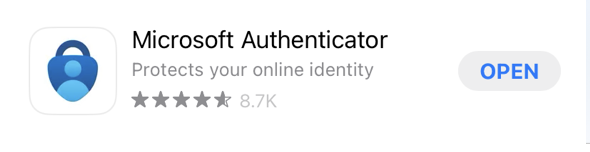
Go to the App Store (iPhone) / Google Play (Android) and search for Microsoft Authenticator, then install it. Make sure you select the correct app (see image). 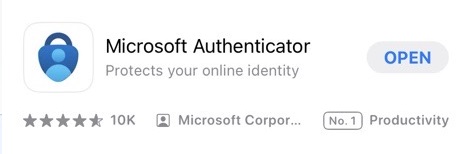
Activation of multi‑factor authentication
- Go to http://aka.ms/mfasetup on a computer.
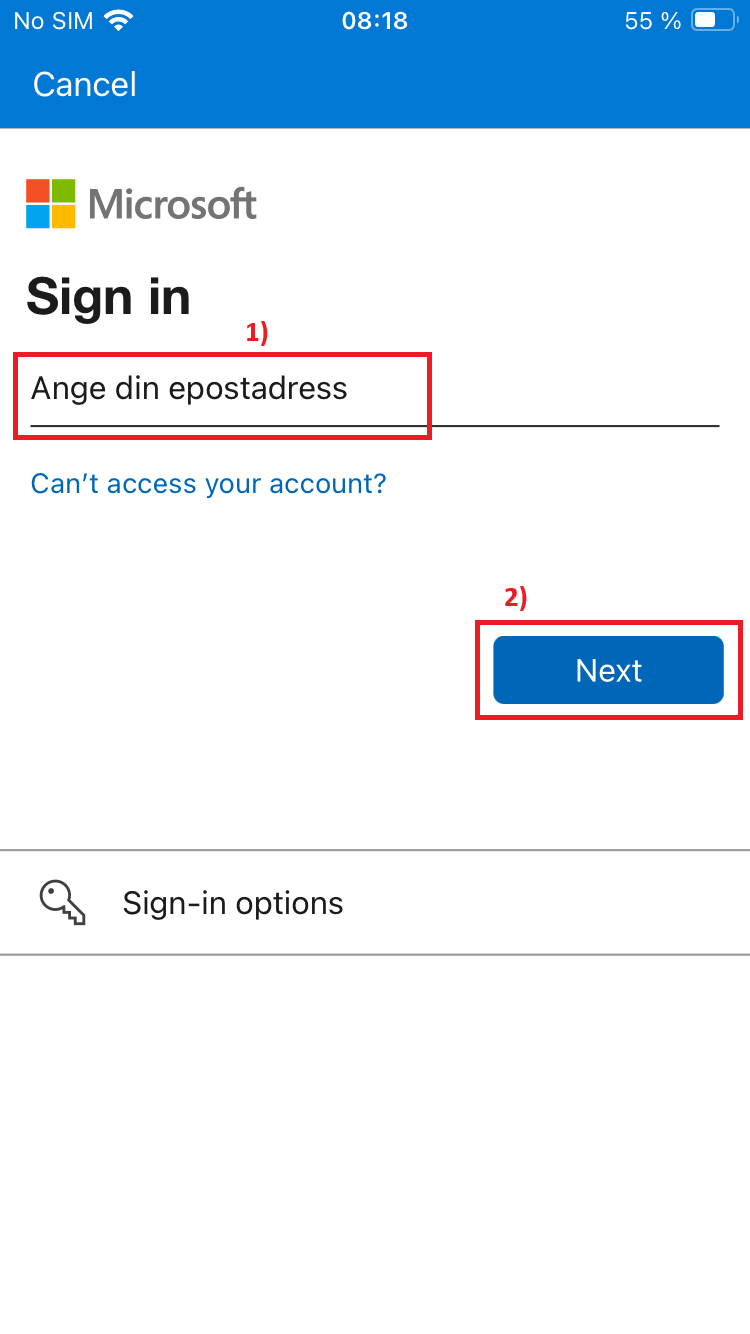
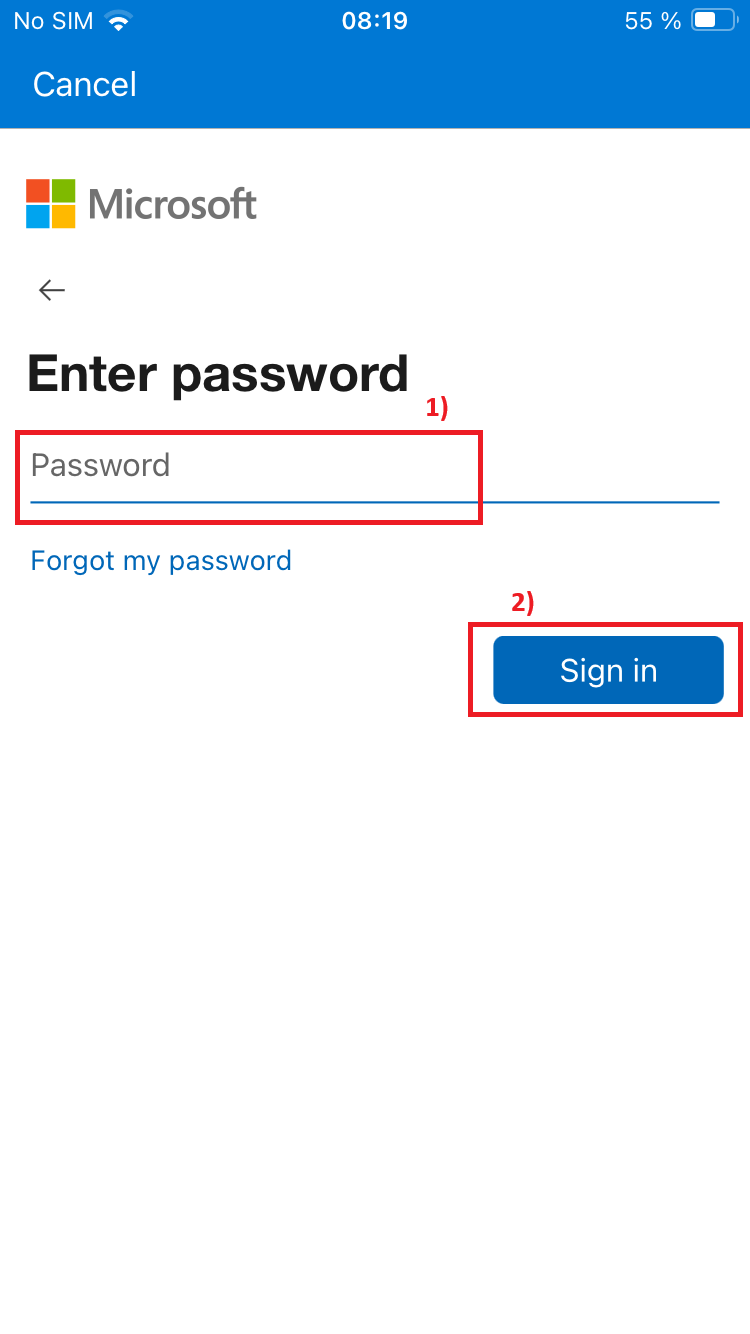
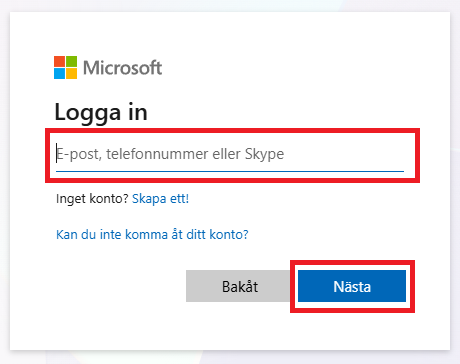
- Log in with your email address and password.
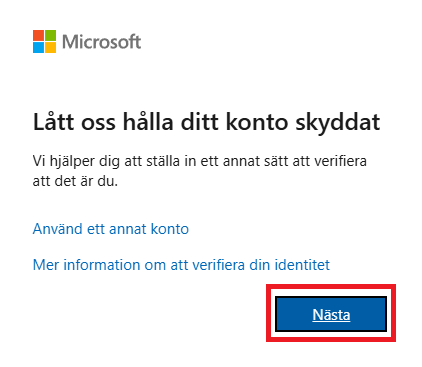
- If your account is ready to configure multi‑factor authentication, a window will appear with the text "Låt oss hålla ditt konto skyddat" Click “Nästa”.
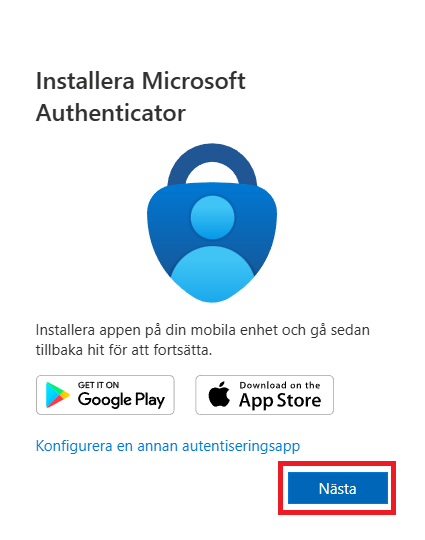
- Install the Microsoft Authenticator app on your mobile phone. If you have already done so, click “Nästa”
- A QR code will now appear on your computer screen. You will scan this code using the Authenticator app on your mobile phone.
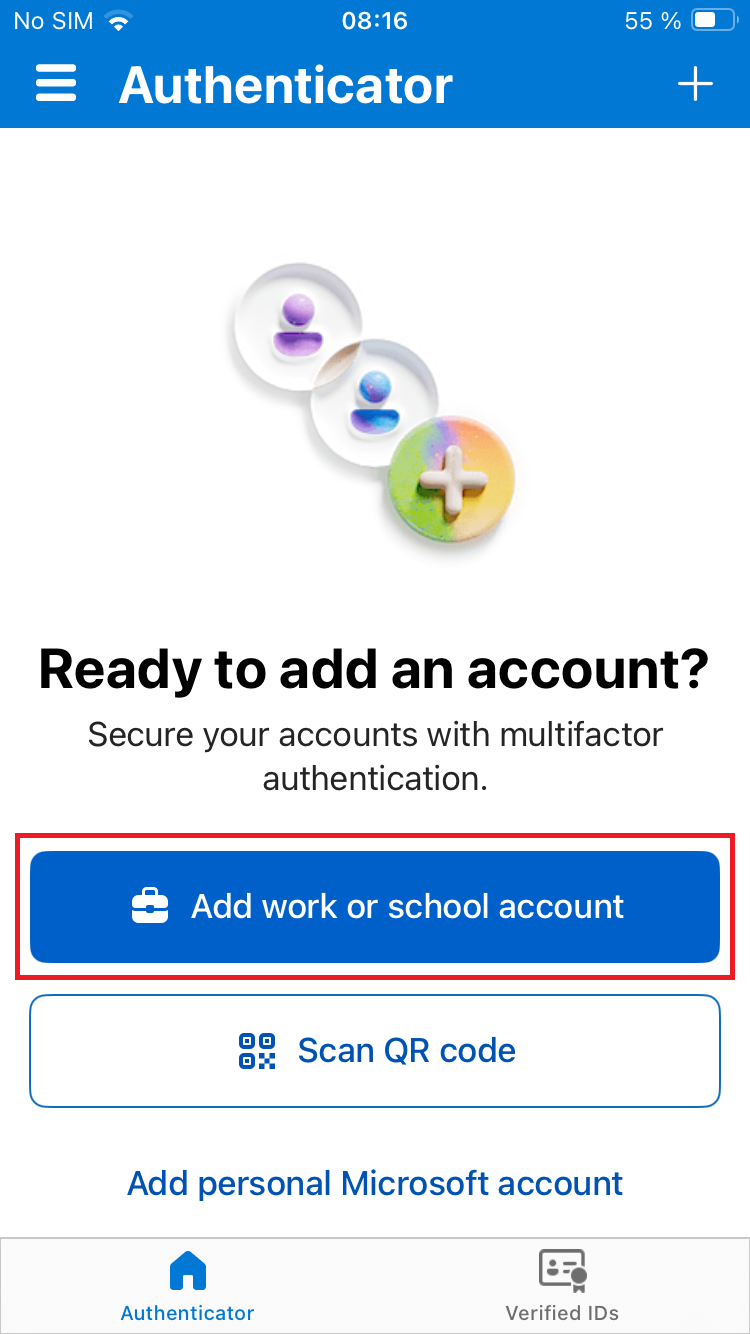
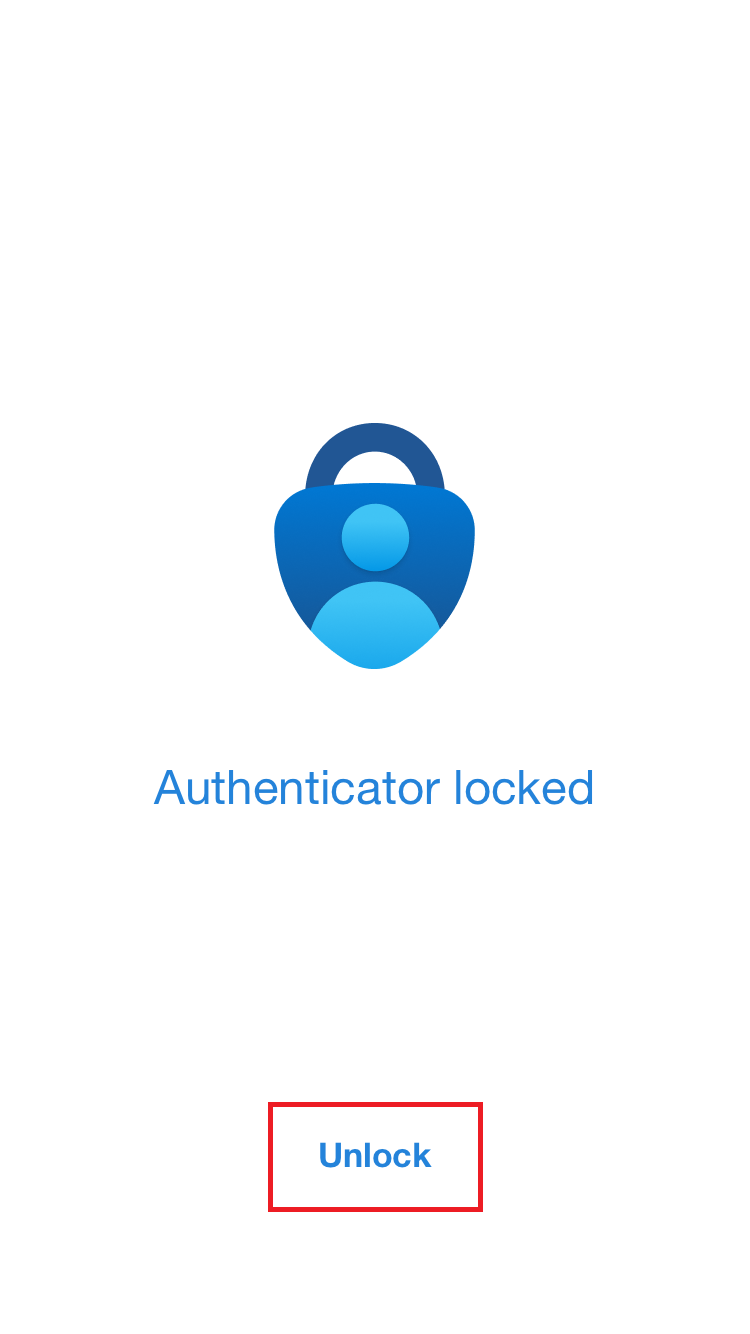
- Open Microsoft Authenticator on your phone.
- Tap “Scan QR code.” Scan the QR code displayed on your computer screen.
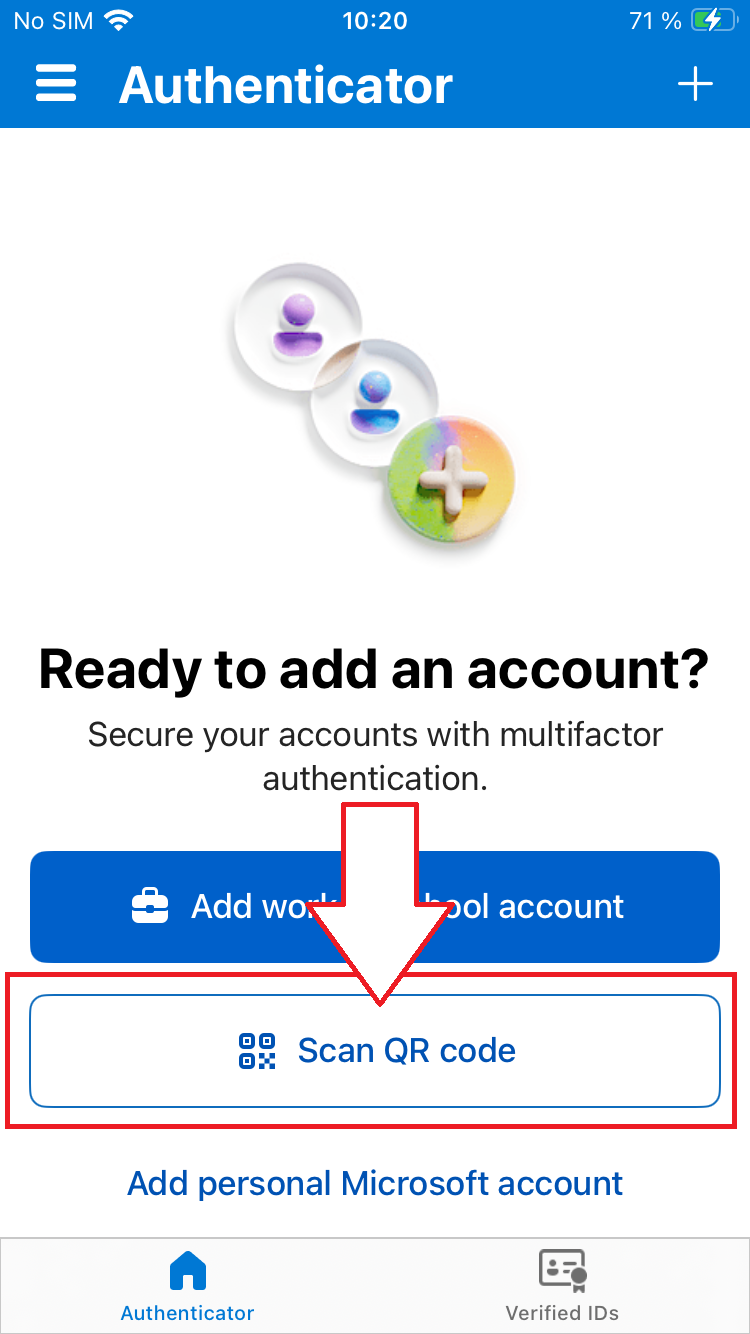
- Once you have scanned the QR code, click “Next” on the computer.
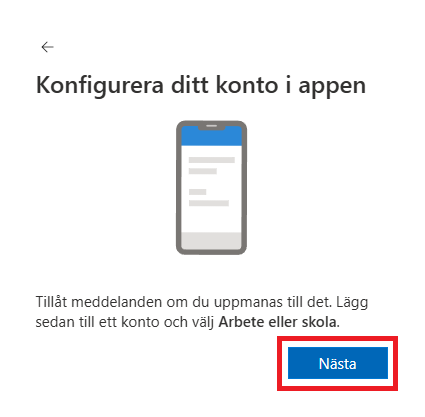
- If you are prompted to allow notifications / push notifications, you must allow them. Then click “Nästa”
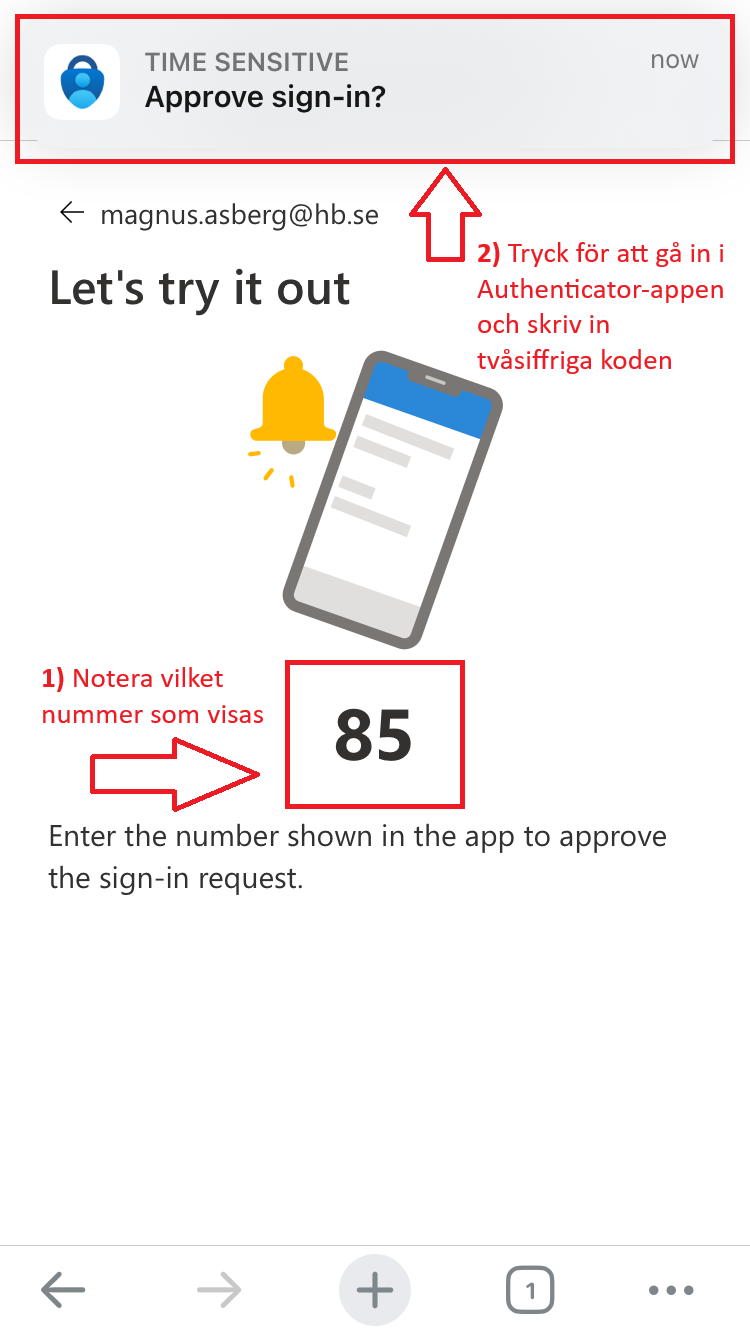
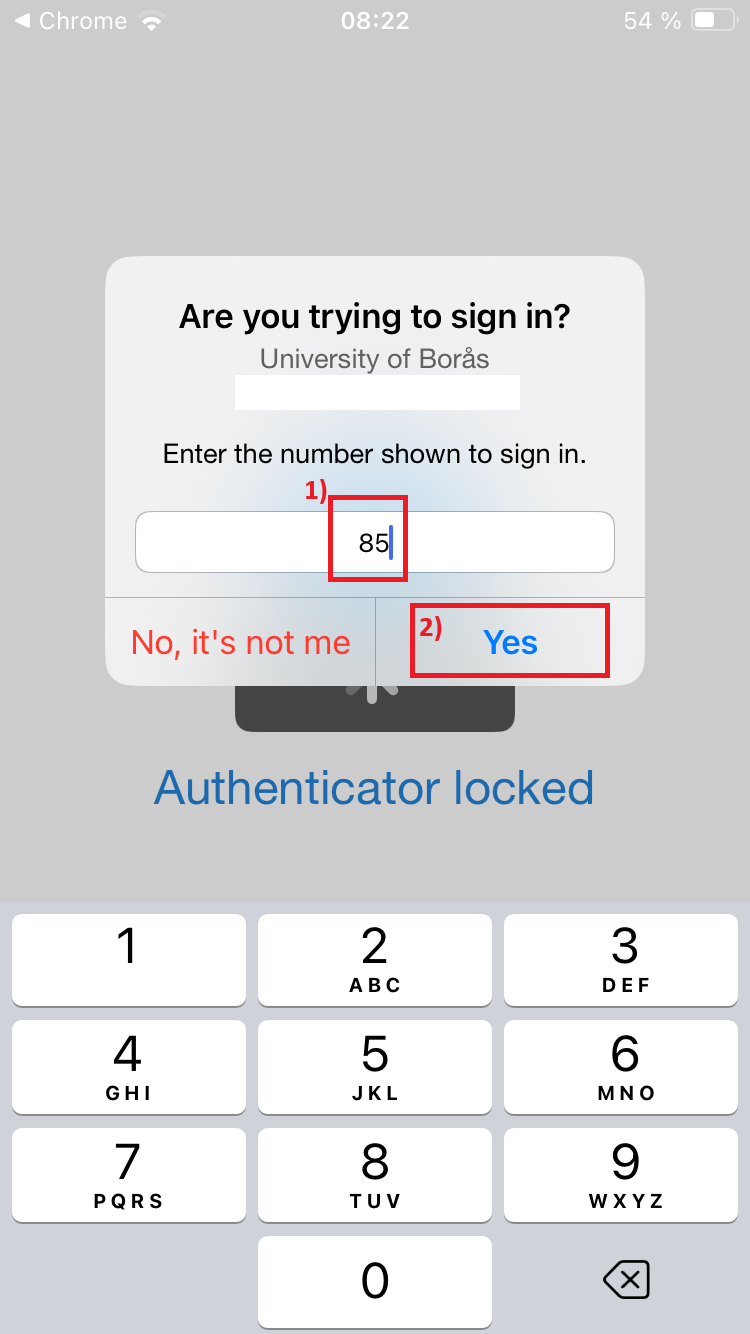
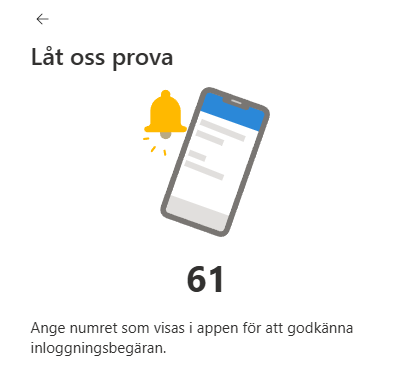
- A two‑digit code will appear on your computer. Enter the code in the Microsoft Authenticator app and tap “Yes.”
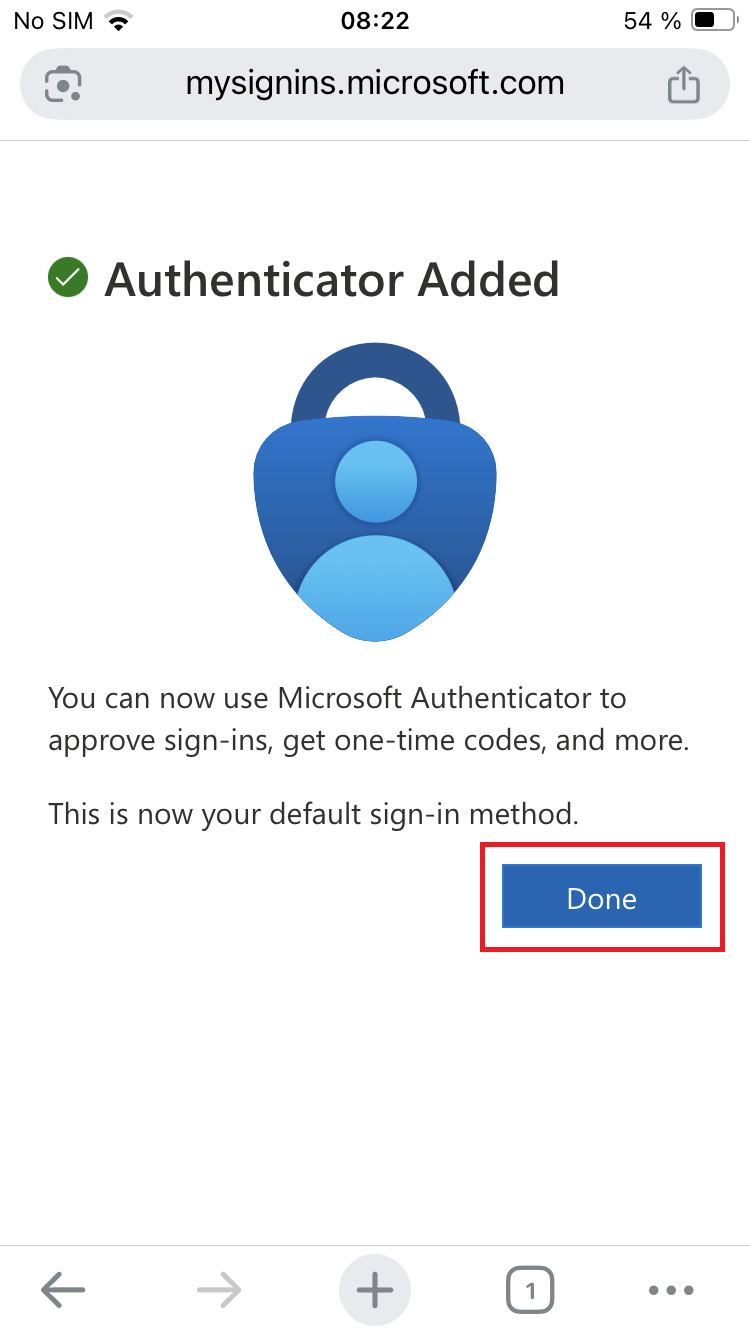
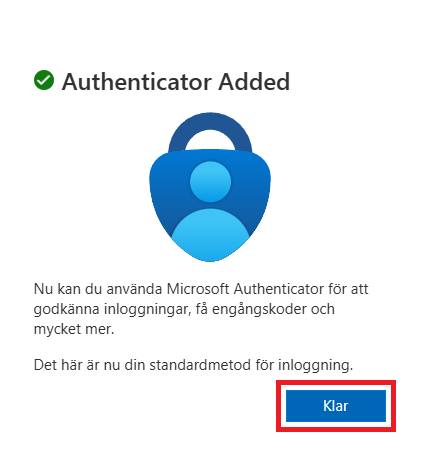
- If everything has been approved, it will show “Authenticator Added.”
When you click “Klar,” you may in some cases receive another two‑digit code that you must enter in the app and tap “Yes” (see step 10)
Signing in with multi‑factor authentication
When signing in to Microsoft with an account that has multi‑factor authentication enabled, you log in by entering your email address and password and clicking Sign in. You will then need to enter the code shown in the Microsoft Authenticator app.
Note: When you are on the university network, you do not need to sign in with the code—your email address and password are sufficient.
Automatic sign‑in on the web (outlook.hb.se) is saved for one month. When signing in through the Outlook client on a computer, it remains saved indefinitely on that device.
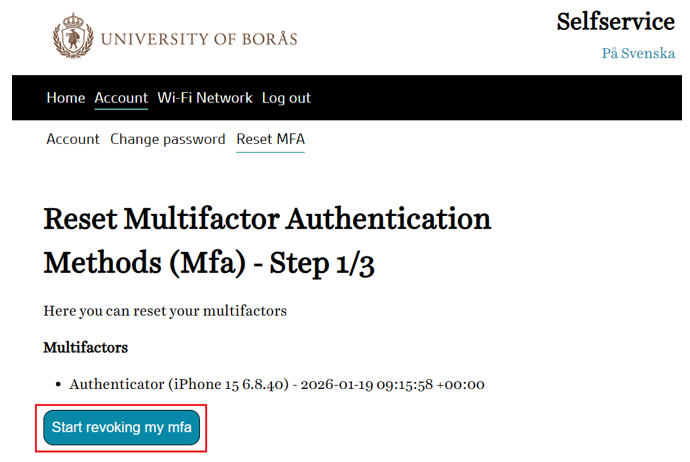
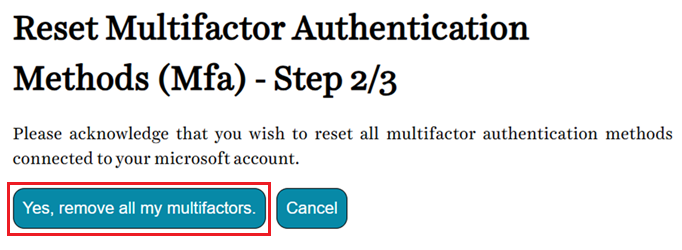
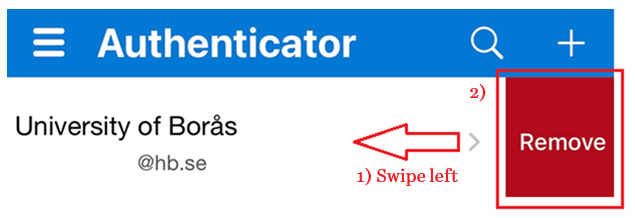
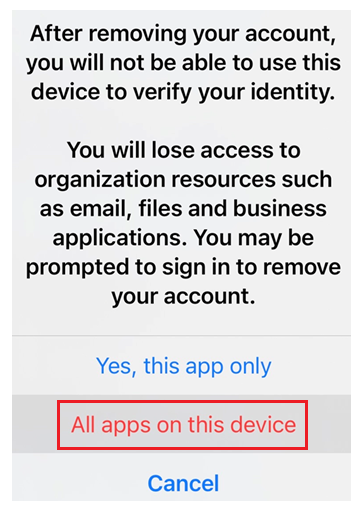
If you have changed your mobile phone, reinstalled the Microsoft Authenticator app, or do not receive a code, you need to contact the University IT Department so they can reset your account, allowing you to configure multi‑factor authentication again.
If any issues arise, you can contact it@hb.se or call 033 – 435 46 90.